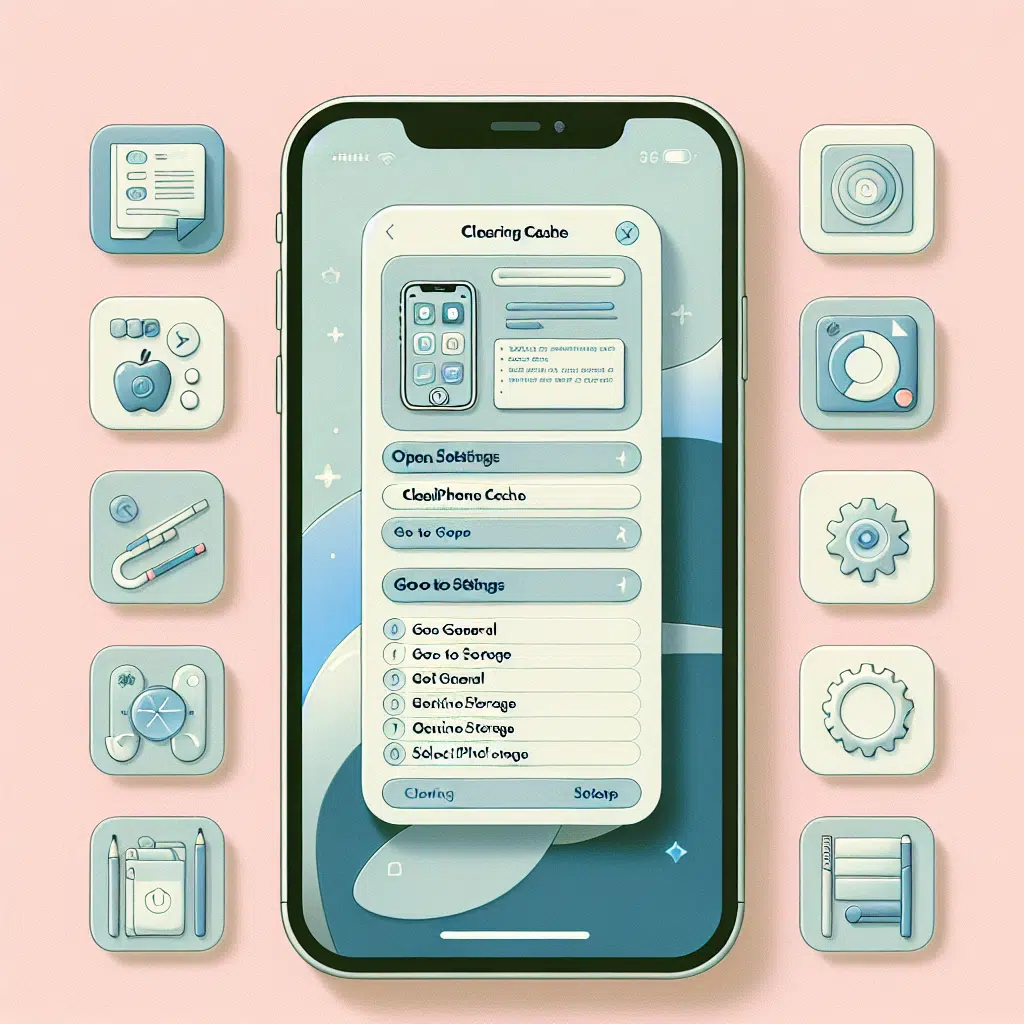
Clear Iphone Cache For Beginners
In today’s digital age, our smartphones are indispensable tools that facilitate everything from communication to entertainment. However, over time, your iPhone may start to lag, app responses may slow down, and storage space might dwindle. One simple yet effective way to improve your iPhone’s performance is by clearing its cache. If you’re not familiar with the process, don’t worry! This beginner’s guide will walk you through everything you need to know to get your iPhone running smoothly again.
What is Cache?
Cache refers to the temporary data stored by your apps and browsers to help them load faster. This data can include images, scripts, and even web pages you’ve visited. While caching is helpful for quick access to frequently used information, it can also accumulate and take up storage space, leading to sluggish performance.
Why Clear Your Cache?
Improve Performance: Apps may respond quicker, and your iPhone can operate more smoothly without the excess baggage of stored cache files.
Free Up Storage Space: Clearing cache can significantly free up space on your device, allowing you to download new apps, photos, or music.
- Fix App Issues: Sometimes, outdated or corrupted cache data can cause apps to crash or behave erratically. Clearing the cache can help resolve these issues.
How to Clear Cache on Your iPhone
Clearing cache can vary slightly depending on whether you want to clear it from Safari (the default browser) or third-party apps. Here’s how to do it:
Clearing Safari Cache
Open Settings: Go to your iPhone’s home screen and tap on the “Settings” icon.
Scroll Down and Tap on Safari: Find Safari in the list and tap on it to open its settings.
- Clear History and Website Data: Scroll down and tap on “Clear History and Website Data.” Confirm your choice when prompted. Note that this will remove history, bookmarks, and cookies as well.
Clearing Cache for Third-Party Apps
Many third-party apps have their own cache that can also be cleared:
Open Settings: Again, go to the “Settings” app.
Scroll Down and Find the App: Look for the specific app you want to clear cache from and tap on it.
- Select ‘Offload App’ or ‘Delete App’: Some apps may offer a “Clear Cache” option, but if not, you can offload or delete the app. Offloading the app retains its data, while deleting it completely removes everything. You can then reinstall it from the App Store, which will effectively clear the cache.
Using iPhone Storage Management
You can also manage your iPhone’s storage effectively:
Open Settings: Go to your iPhone’s "Settings."
Tap on General: Scroll down and tap on "General."
Select iPhone Storage: This section provides an overview of your storage usage, showing which apps take up the most space.
- Review and Delete Unused Apps: You can delete apps you don’t use frequently or offload them to free up space without permanently losing data.
Tips for Maintaining a Clear Cache
Regularly Clear Your Cache: Make it a habit to clear your cache every few months or whenever you notice a slowdown in performance.
Limit Browser Data: If you’re using Safari, adjust your browsing habits. You can prevent websites from keeping data by choosing to “Block All Cookies” in Safari’s settings.
- Consider Using Third-Party Safari Browser Alternatives: Some browsers come with built-in features to manage cache more efficiently.
Conclusion
Regularly clearing the cache on your iPhone is a simple yet effective way to ensure your device continues to perform at its best. While the steps may vary for different apps and usages, the fundamental principle remains: a cleaner cache leads to a smoother, faster iPhone experience. So, roll up your sleeves, follow this guide, and give your iPhone the performance boost it deserves!