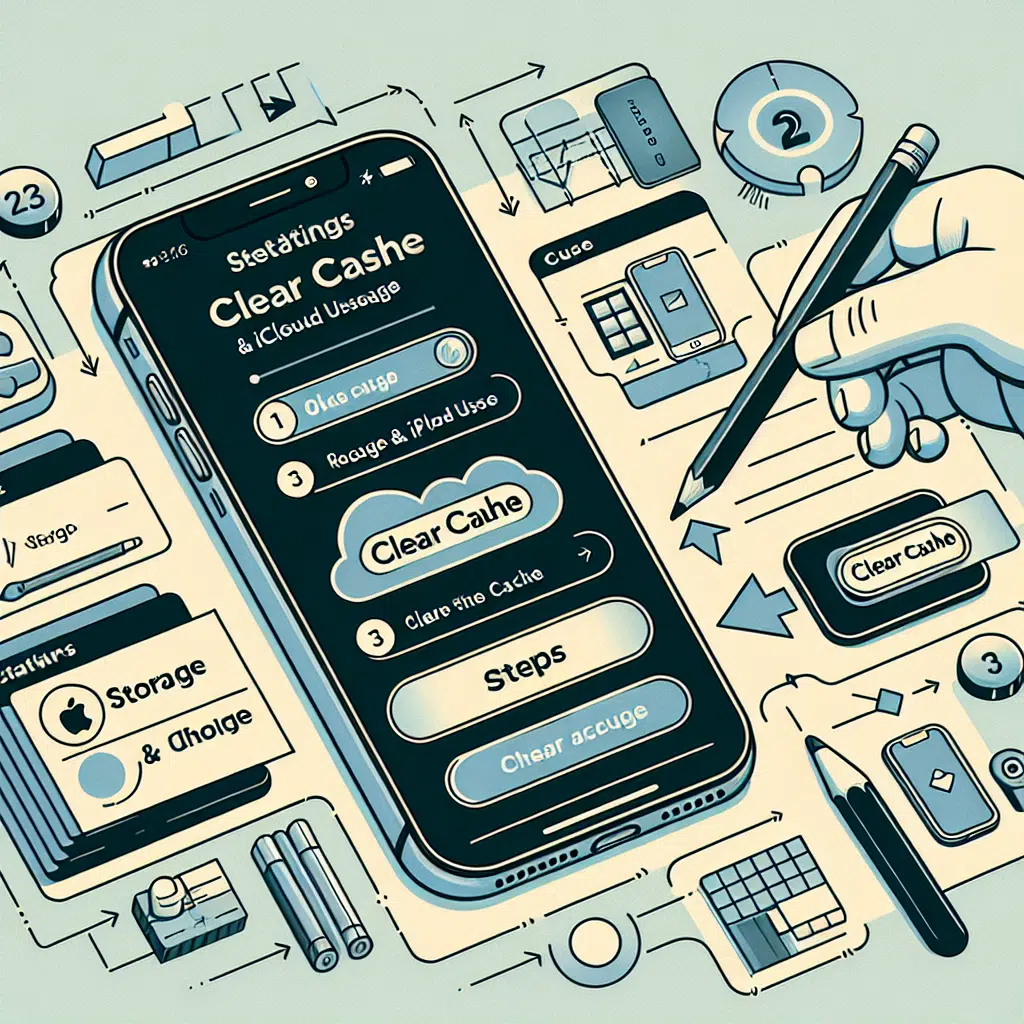
Clear Iphone Cache Tutorial
In today’s fast-paced digital world, our smartphones have become indispensable tools for communication, entertainment, and productivity. However, over time, your iPhone may begin to slow down due to accumulated cache and temporary files. These files can consume storage space, leading to lag and performance issues. Resetting your iPhone and clearing its cache can help restore optimal performance. In this article, we’ll provide a step-by-step guide on how to do just that.
Why Clear the Cache?
Clearing the cache on your iPhone can free up storage space, speed up applications, and improve overall device responsiveness. Cached data helps apps load faster, but when it builds up over time, it can actually hinder performance. Resetting your iPhone can help resolve issues such as:
- Slow Performance: Apps may take longer to open and function.
- Storage Woes: Limited available space can impede your ability to download new applications or updates.
- Crashing Apps: Frequent crashes may indicate that an app’s cache is corrupted.
Step-by-Step Guide to Resetting Your iPhone
Step 1: Back Up Your Data
Before proceeding with any reset, it’s essential to back up your data. You can do this via iCloud or iTunes.
iCloud Backup:
- Go to Settings > [Your Name] > iCloud > iCloud Backup.
- Tap Back Up Now and wait for the process to complete.
- iTunes Backup:
- Connect your iPhone to your computer.
- Open iTunes and select your device.
- Click on Back Up Now.
Step 2: Clear App Cache
Many apps store cache data that can be cleared without resetting your entire device. Here’s how to clear cache for individual apps:
Photos App:
- Open the Photos app and delete unnecessary photos and videos.
- Consider using the Optimize iPhone Storage feature in Settings > Photos.
Safari:
- Go to Settings > Safari.
- Tap on Clear History and Website Data.
- Third-Party Apps:
- Some apps, such as Facebook or Instagram, allow you to clear cache within their settings. Check individual applications for cache-clearing options.
Step 3: Offload Unused Apps
If you have apps that you rarely use, consider offloading them to save space.
- Go to Settings > General > iPhone Storage.
- Scroll down and select the app you wish to offload.
- Tap Offload App.
Step 4: Perform a Soft Reset
Sometimes a simple reboot can solve temporary performance issues.
- Press and hold the Power button (or the Side button) until you see the slide to power off option.
- Slide to turn off your device.
- Once off, press the Power/Side button again to turn it back on.
Step 5: Perform a Factory Reset
If performance issues persist, a factory reset may be required. This step will erase all data from your device, so ensure your data is backed up.
- Go to Settings > General > Transfer or Reset iPhone.
- Tap Erase All Content and Settings.
- Confirm your choice and wait for the reset to complete.
Step 6: Restore Your Data
After the factory reset, you can restore your iPhone from the backup you created earlier.
- When you set up your iPhone, choose the option to restore from iCloud Backup or iTunes Backup depending on where you saved it.
Step 7: Regular Maintenance
To keep your iPhone running smoothly, schedule regular maintenance:
- Restart your iPhone weekly to clear temporary memory.
- Clear app caches periodically through individual app settings.
- Regularly check for updates in Settings > General > Software Update to ensure your device remains optimized.
Conclusion
Resetting your iPhone and clearing its cache can significantly enhance performance and responsiveness. By following the steps outlined in this guide, you can ensure your device runs smoothly and efficiently. Regular maintenance goes a long way in keeping your iPhone in top shape, allowing you to make the most of its capabilities. If performance issues persist, consider reaching out to Apple Support for further assistance.