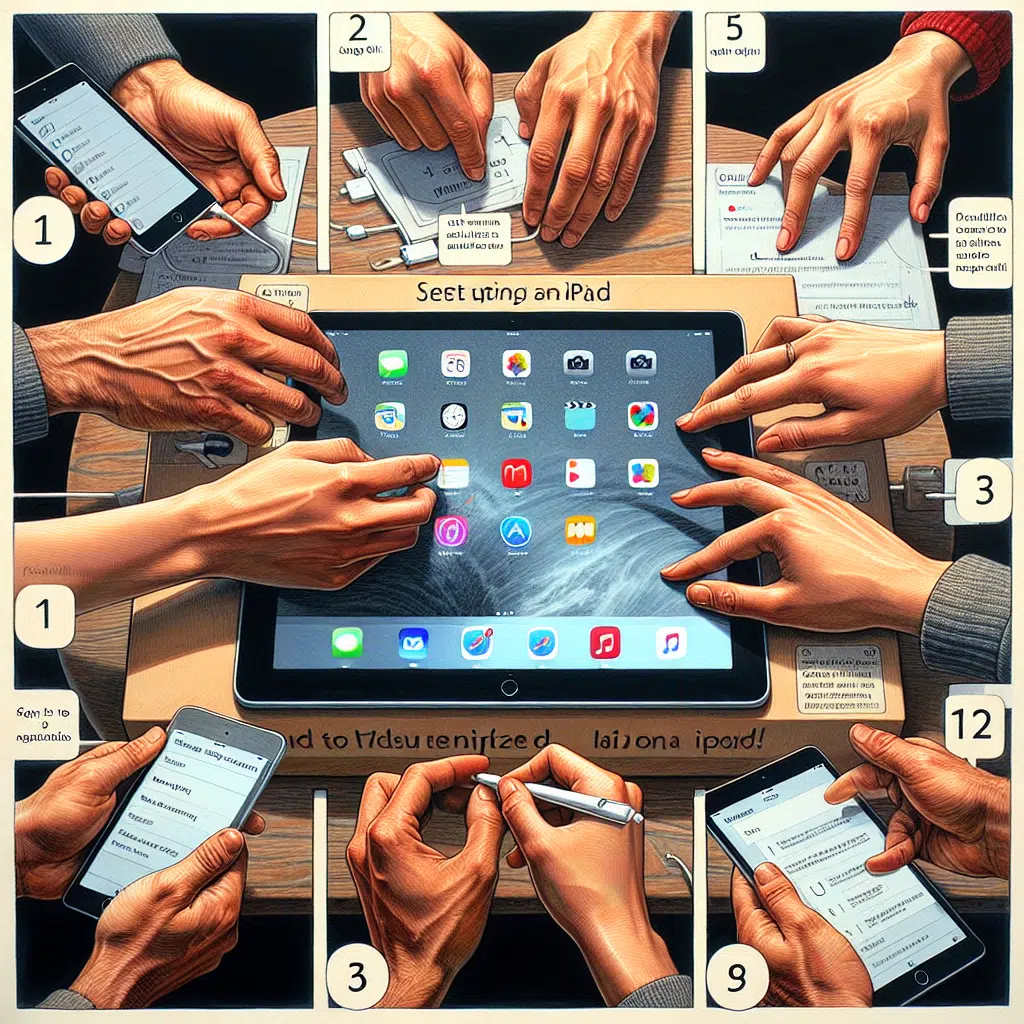
How To Ipad Setup
The iPad is more than just a tablet; it’s a powerful device that can transform the way you work, learn, and play. To maximize its potential, however, proper setup is essential. In this guide, we’ll walk you through every step to ensure your iPad is perfectly tailored to your needs, no matter if you’re a student, professional, or casual user.
Step 1: Initial Setup
Power On and Choose Language
When you first power on your iPad, you’ll be greeted with the "Hello" screen. Choose your preferred language and country.
Connect to Wi-Fi
Next, select your Wi-Fi network and enter the password. A stable internet connection is crucial for downloading apps and updates.
Sign in with Apple ID
If you already have an Apple ID, sign in. If not, take a moment to create one; this account will give you access to the App Store, iCloud, and other Apple services.
Set Up Face ID/Touch ID
Depending on your iPad model, set up Face ID or Touch ID for secure access. This feature adds a layer of protection and convenience to your device.
Choose Backup Option
You can choose to restore from an existing device, from an iCloud backup, or to set up as a new iPad. If you’re starting fresh, selecting "Set Up as New iPad" is often the best choice.
Step 2: Customize Your Home Screen
Arrange Apps
Once you’re on the home screen, take the time to arrange your apps. Drag and drop to organize them into folders based on usability or categories such as Productivity, Entertainment, or Education.
Set a Wallpaper
Go to Settings > Wallpaper to choose an attractive background that reflects your style, making your iPad feel personal and inviting.
Step 3: Essential Apps to Download
Visit the App Store and consider downloading some essential apps based on your lifestyle:
- Productivity: Microsoft Office, Notion, Todoist
- Creativity: Procreate, Canva, iMovie
- Communication: Zoom, Slack, Microsoft Teams
- Entertainment: Netflix, Spotify, Kindle
Step 4: Configure Settings
Privacy Settings
Go to Settings > Privacy and customize your privacy settings according to your comfort level. Features like location services can be adjusted for individual apps.
Notifications
Navigate to Settings > Notifications to customize how and when you receive alerts from your apps. Turn off notifications for less critical apps to reduce distractions.
Display & Brightness
Set your Brightness to Automatic for comfortable viewing. Adjust Night Shift settings if you often use your iPad at night to reduce blue light exposure.
Step 5: Explore iCloud
Set Up iCloud
Link your Apple ID to iCloud to access features such as iCloud Drive, Photos, and backups. Go to Settings > [Your Name] > iCloud and toggle the features you wish to enable.
Backup
Regular backups will help keep your data safe. You can choose to backup your iPad via iCloud or connect it to a computer using iTunes.
Step 6: Make It Yours
Widgets
In iOS 14 and later, add widgets to your home screen for quick access to information from your favorite apps. Simply long-press the home screen, tap the ‘+’ button, and select widgets you want to add.
Siri
Customize Siri settings to enable Siri’s voice recognition, personal responses, and shortcuts to access your favorite features quickly.
Step 7: Learn the Gestures
Take some time to familiarize yourself with the gestures that make navigating your iPad smooth and intuitive:
- Swipe up for the App Switcher
- Swipe down from the corner for Control Center
- Pinch to zoom in or out of apps and pictures
Step 8: Accessibility Features
If you or someone using your iPad has specific needs, explore the accessibility options under Settings > Accessibility. Features such as VoiceOver, magnification, and assistive touch can significantly enhance the user experience.
Step 9: Regular Maintenance
Keep your iPad running smoothly by:
- Regularly updating the software (Settings > General > Software Update)
- Managing storage (Settings > General > iPad Storage)
- Removing unused apps or offloading them to free up space
Conclusion
Setting up your iPad may seem daunting at first, but following this step-by-step guide will allow you to tailor your device to fit your unique lifestyle and needs. The iPad can be a tool for creativity, productivity, and entertainment when set up correctly. So take the plunge, unleash your iPad’s full potential, and enjoy everything it has to offer!