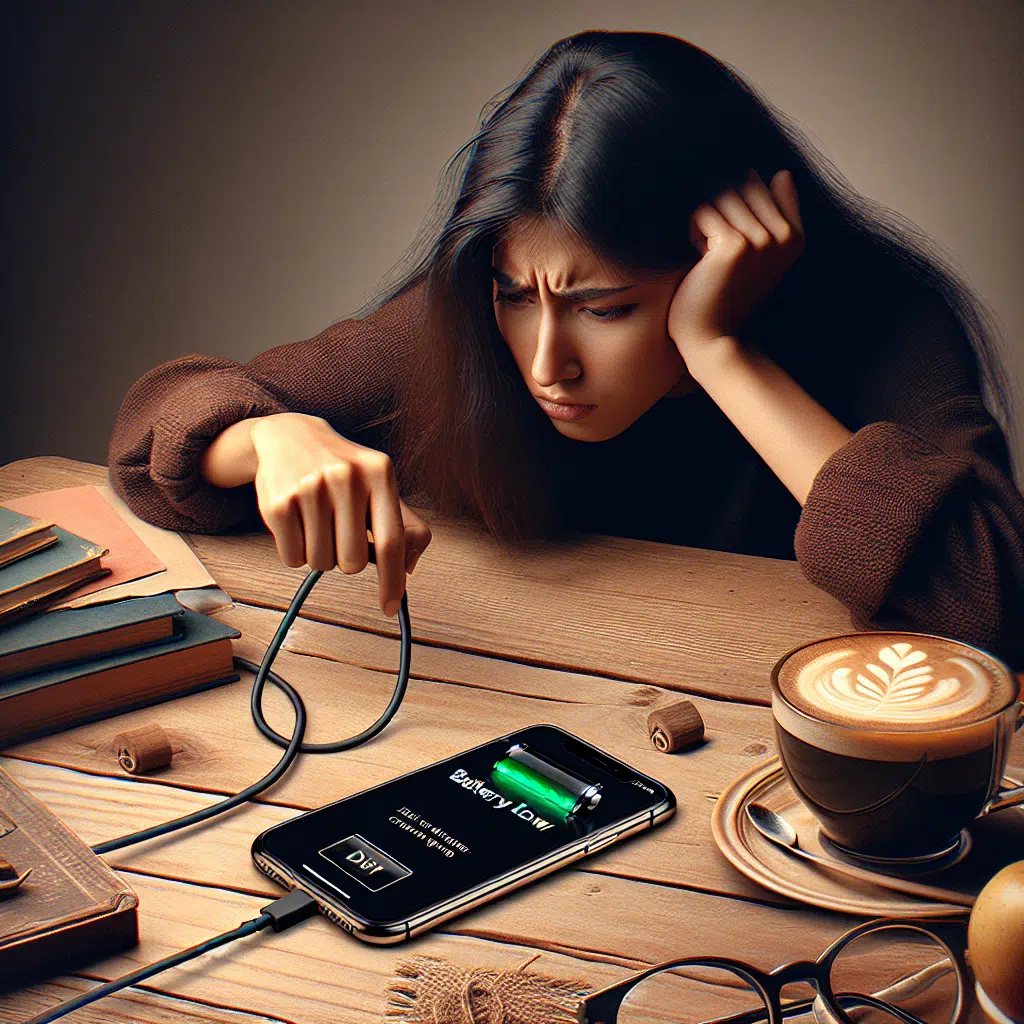
Buy Iphone Not Charging
If you find yourself staring at your iPhone, plugged in but refusing to charge, it can be a frustrating experience. Whether it’s an important call you need to make or your favorite show you want to binge-watch, a non-charging iPhone can disrupt your day. But before you panic, let’s explore some common reasons your iPhone might not be charging and how to troubleshoot the situation effectively.
Common Reasons Your iPhone Won’t Charge
Faulty Cable or Adapter: One of the most common culprits is a damaged charging cable or adapter. Inspect them for fraying, bends, or any visible signs of wear and tear.
Dirty Charging Port: Dust, lint, or debris can accumulate in your iPhone’s charging port, preventing the cable from making a good connection.
Software Glitches: Sometimes, your iPhone may not charge due to software issues that can be resolved with a simple restart or an update.
Battery Issues: If your iPhone is old, the battery might be worn out and incapable of holding a charge.
- Temperature Extremes: Both cold and hot conditions can affect your iPhone’s ability to charge.
Steps to Troubleshoot Your Non-Charging iPhone
1. Inspect Your Cable and Adapter:
- Check for visible damage on your charging cable and adapter.
- If possible, try using a different cable and adapter to see if the problem persists.
2. Clean the Charging Port:
- Use a flashlight to peek inside the lightning port.
- If you see debris, gently use a toothpick or compressed air to clean it out carefully.
3. Restart Your iPhone:
- Sometimes a simple restart can resolve minor software glitches. Hold down the power button, then slide to power off. Wait a few seconds and turn it back on.
4. Update iOS:
- Go to Settings > General > Software Update to check for any available updates. Keeping your software updated can resolve charging issues.
5. Check for Overheating or Cold Weather:
- If your iPhone is too hot or too cold, it may not charge. Let it return to a more moderate temperature before trying again.
6. Try a Different Power Source:
- If you’re charging via a wall outlet, try swapping to a computer USB port or a power bank. This helps determine if the issue lies with the power source.
7. Reset All Settings:
- As a last resort, you can reset all settings without deleting your data. Go to Settings > General > Transfer or Reset iPhone > Reset > Reset All Settings.
8. Check for Battery Health:
- Go to Settings > Battery > Battery Health. If your battery health is significantly below 80%, a replacement may be needed.
When to Seek Professional Help
If you’ve tried all the above steps and your iPhone still won’t charge, it might be time to visit an Apple Store or an authorized service provider. There may be hardware issues or a deeper battery problem that requires professional assistance.
Final Thoughts
Dealing with a non-charging iPhone can be a hassle, but the good news is that many issues can be resolved through simple troubleshooting methods. Make sure to regularly clean your charging port and use quality charging accessories to prevent future problems. With these tips in mind, you’ll be back to using your iPhone in no time!