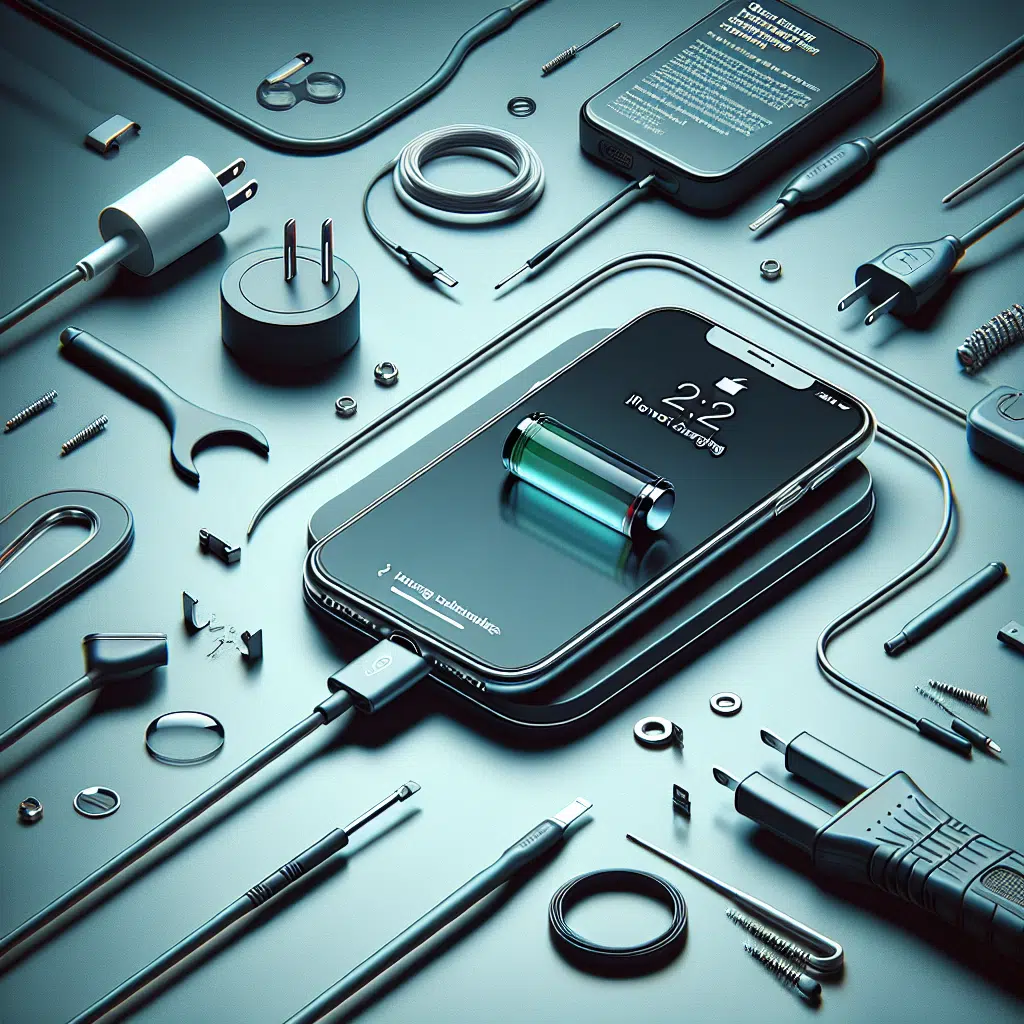
How To Iphone Not Charging
Charging issues with your iPhone can be frustrating, especially when you rely on your device for communication, socializing, and work. If you find yourself facing power problems, don’t panic! Most charging issues can be resolved with a few simple troubleshooting steps. Here’s a guide to help you identify and fix common iPhone charging problems.
1. Check Your Lightning Cable and Adapter
Inspect for Damage
Start by examining your Lightning cable and power adapter. Look for any signs of wear, fraying, or damage. Try using a different charging cable and adapter to see if the issue persists.
Authentic Accessories
Ensure you’re using an Apple-certified charging accessory. Non-certified cables may not work properly or could damage your device.
2. Inspect the Charging Port
Clean the Port
Dust, lint, or debris can accumulate in the charging port, preventing a proper connection. Use a flashlight to inspect the port, and if necessary, gently clean it with a dry, soft brush or a can of compressed air.
Check for Damage
Examine the port for any visible signs of damage. If the port appears damaged, professional repair may be necessary.
3. Restart Your iPhone
A simple restart can resolve many temporary glitches. To restart your iPhone, follow these steps:
- For iPhone X and newer: Press and hold the side button and the volume button until the slider appears. Drag the slider, then press and hold the side button again to turn it back on.
- For iPhone 8 and earlier: Press and hold the side (or top) button until you see the slider. Slide it to power off and then hold the button again to turn it back on.
4. Update iOS
An outdated iOS version can cause charging issues. Check for updates by going to:
Settings > General > Software Update
If an update is available, download and install it. Keeping your software current ensures optimal performance and fixes potential bugs.
5. Check for Power Source Issues
Switch Outlets
If you’re charging through a wall outlet, try a different outlet. If you’re charging through your computer, make sure it’s powered on and not in sleep mode.
Use Wireless Charging
If your iPhone supports wireless charging, try it as an alternative. Ensure your wireless charger is plugged in and working properly.
6. Reset Your iPhone Settings
If the problem continues, resetting your settings may help. This won’t delete your content, but you will lose saved Wi-Fi passwords and preferences. To reset:
Settings > General > Transfer or Reset iPhone > Reset > Reset All Settings
7. Restore Your iPhone
If none of the above methods work, consider restoring your iPhone using iTunes or Finder. This process can resolve deeper software issues:
- Connect your iPhone to your computer and open iTunes (or Finder on macOS Catalina and later).
- Select your device.
- Click on "Restore iPhone." This will erase all data, so ensure you have a backup before proceeding.
8. Seek Professional Help
If your iPhone still won’t charge after trying all the above steps, it may be time to consult a professional. Visit an Apple Store or authorized service provider for diagnostics and potential repairs. Battery issues or internal damage may require professional intervention.
Conclusion
Charging problems can disrupt your daily routine, but many can be fixed with a few troubleshooting steps. By checking your hardware, ensuring your software is up to date, and resetting your settings when necessary, you can often resolve issues on your own. However, don’t hesitate to reach out for professional help if you need it. Keeping your iPhone in tip-top shape will ensure you stay connected and powered up!