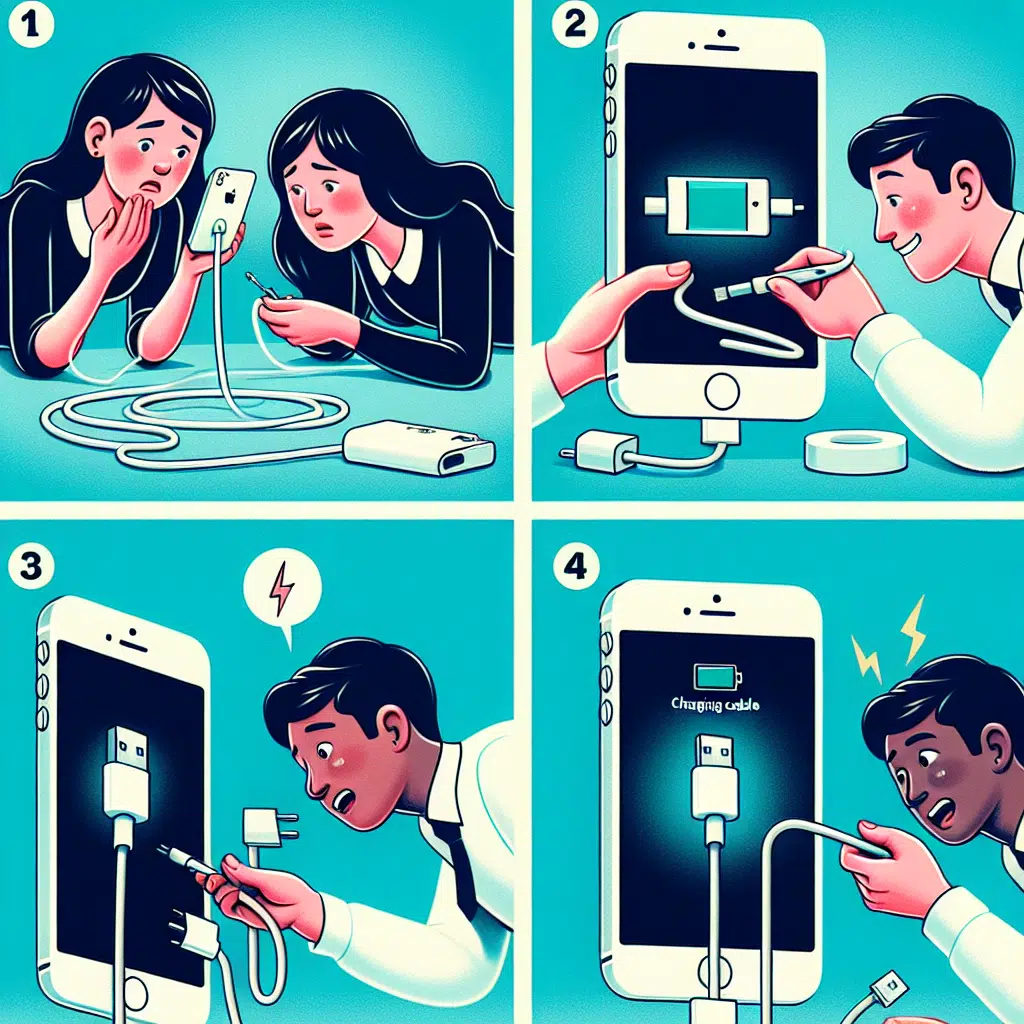
Iphone Not Charging Tutorial
It can be incredibly frustrating when you plug in your iPhone and find that it’s not charging. Whether you’re rushing to a meeting or settled in for a movie marathon, a dead battery can interrupt your day. Fortunately, there are multiple reasons for this issue, many of which can be easily addressed. This article will guide you through common problems and solutions to help get your iPhone back to working condition.
1. Check the Basics
Use the Right Charger
Make sure you’re using an Apple-certified charger and cable. Non-certified accessories might not provide the right voltage or compatibility, leading to charging issues.
Inspect the Charging Port
Dirt and debris can get lodged in the charging port, preventing a proper connection. Look closely and use a soft brush or a toothpick to gently clear out any obstructions.
Test with a Different Cable or Charger
If possible, try a different charging cable or wall adapter. This will help determine if the issue lies with your current equipment.
2. Software Glitches
Restart Your iPhone
Sometimes, a simple restart can resolve minor software glitches. Hold down the power button and either of the volume buttons (depending on your model) until the "slide to power off" appears. Turn it back on after a few seconds.
Update iOS
Make sure your iPhone is running the latest software version. Go to Settings > General > Software Update and install any available updates.
Reset Settings
If you’re still experiencing issues, you may need to reset your settings. Go to Settings > General > Transfer or Reset iPhone > Reset > Reset All Settings. This won’t erase your data, but it will return your settings to default.
3. Battery Health
Check Battery Health
Your battery may be degrading, especially if your iPhone is a few years old. Go to Settings > Battery > Battery Health to check its status. If your maximum capacity is significantly reduced, it might be time to consider a battery replacement.
4. Environmental Factors
Temperature Matters
iPhones have built-in safeguards that prevent them from charging if they’re too hot or too cold. If you’re in extreme temperatures, move your device to a more temperate environment and let it stabilize before trying to charge it.
Moisture Damage
If your iPhone has been exposed to water or high humidity, there may be moisture within the charging port. Carefully dry the port and let the device sit in a warm, dry place.
5. Hardware Issues
Inspect for Damage
Look for any visible damage to your iPhone that could affect charging, such as a cracked screen or signs of impact. If you detect physical damage, a trip to the Apple Store or an authorized technician may be necessary.
Contact Apple Support
If you’ve tried all the troubleshooting tips and nothing works, it may be time to contact Apple Support. They can run diagnostics to determine if there’s a serious hardware issue.
Conclusion
Experiencing charging problems with your iPhone can be both annoying and inconvenient. By following the troubleshooting tips outlined above, you can diagnose and potentially fix the issue without needing professional assistance. Remember to always use genuine accessories and take care of your device to minimize future problems. If all else fails, don’t hesitate to seek help from Apple Support. With these tips in your arsenal, you’ll be better prepared to tackle any charging issues that arise!